Dashboard Features
How can I compare the performance of multiple shows?
Navigate to "Compare" to see Playback, Listen Time, and Downloads for individual Pro shows you have access to plotted together.
This feature is only available to users with access to multiple paid shows.
How can I see how my entire podcast network is doing?
For a high-level overview of your network, upgrade all the podcasts in that network to the paid Pro plan then add them to a team. Then navigate to "Compare" and then toggle on "Teams." You'll be able to see Playback, Listen Time, and Downloads for all the Pro shows on your team combined, along with changes in these metrics over time.
If you have access to multiple teams, each will show up in the "teams" view. Isolate a single network by x'ing out the ones you don't want to see.
This feature is only available to users with access to multiple paid shows. Note that shows on the free plan will not be included in your teams view.

How do I export my charts?
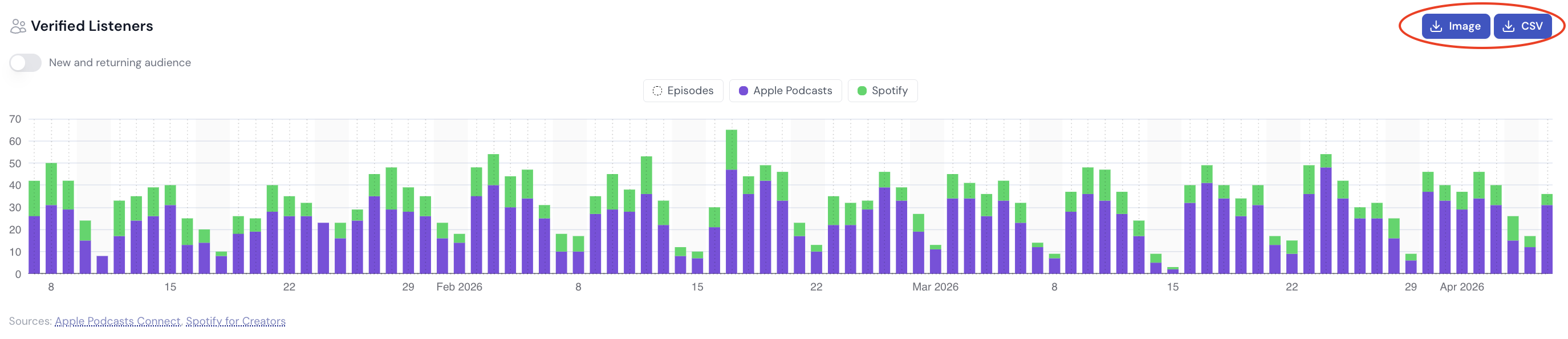
Every chart in the Dashboard has export buttons in the top-right corner. You can download the visual chart as a high-resolution PNG or the data as a CSV.
Am I missing out on important data about my show because I can't connect listening platforms beyond Apple Podcasts, Spotify, and YouTube?
Metrics displayed on the Bumper Dashboard such as Verified Audience, Playback and Listen & Watch Time are not comprehensive, but they are strongly directional and encompass audience behavior on what research suggests are the three biggest consumption platforms.
What does it mean when the Bumper Dashboard compares a metric to a "previous period"?
The Bumper Dashboard tells you whether and by how much your Listen & Watch Hours, Followers, and Downloads increased or decreased over a given period of time. This is compared to the equivalent preceding amount of time. For example, if you're looking at Playback for the three month period from April to June, the Dashboard compares this to the three months prior, from January to March.

Why doesn't the Bumper Dashboard tell me the percentage by which my Verified Audience grew or declined over a given period?
Verified Audience is a metric pulled directly from Apple Podcasts and Spotify for Creators. These platforms provide unique listener and viewer counts for distinct days, weeks and months. Because of the way this data is structured, the Bumper Dashboard is unable to support Verified Audience counts for arbitrary time ranges, and therefore cannot consistently calculate percent change for Verified Audience.
How do I see All-Time Verified Audience?
To see All-Time Verified Audience, toggle on "Cumulative" on the Overview page. This number will display next to "Verified Audience."
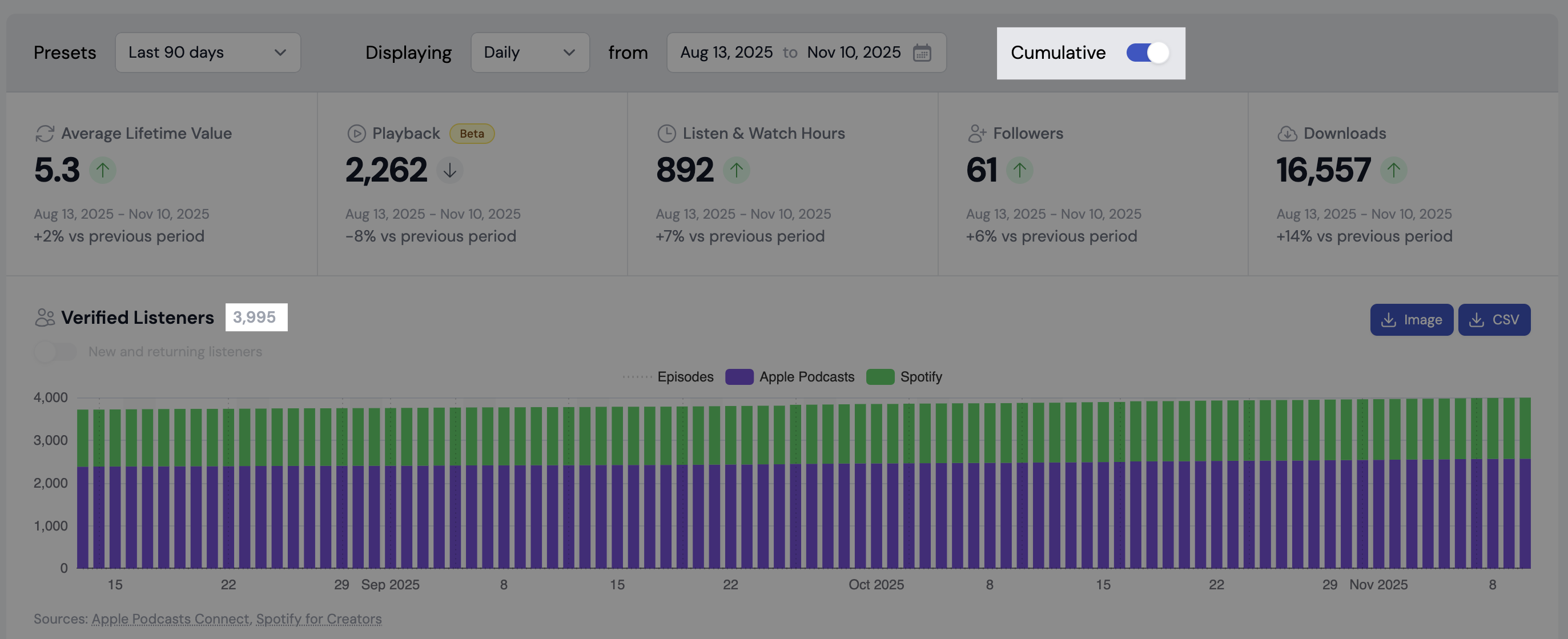
Historical data for cumulative Apple Podcasts audience is only available from the time the Bumper Dashboard gets access to your show in Apple Podcasts Connect, and the days/weeks/month after.
This is because cumulative Verified Audience is a derived metric, calculated by the Bumper Dashboard. To do this, we go into Apple Podcasts Connect each day and pull data as it appears on that day. Spotify provides the data we need for any given day of a show's history, but as Apple does not, it's not possible for us to make this calculation retroactively.