User management
How do I add additional users to my podcast or network's Bumper Dashboard?
To add additional users, you must be the person who originally added your podcast to the Bumper Dashboard. For enterprise users, you must be a Team Admin.
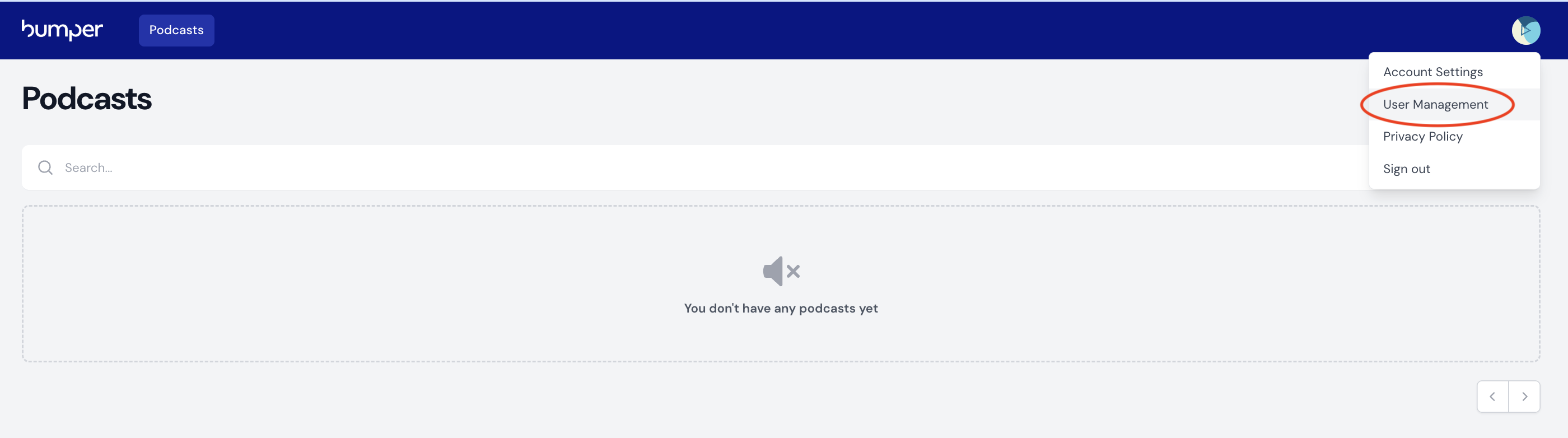
From the top right of the Dashboard, click on the circle and select "User Management." Then click "Add User" on the top right of the page. Then, enter the email address of the person you'd like to invite. Checking the box next to the name of your podcast gives them access to the show, including the ability to connect services.
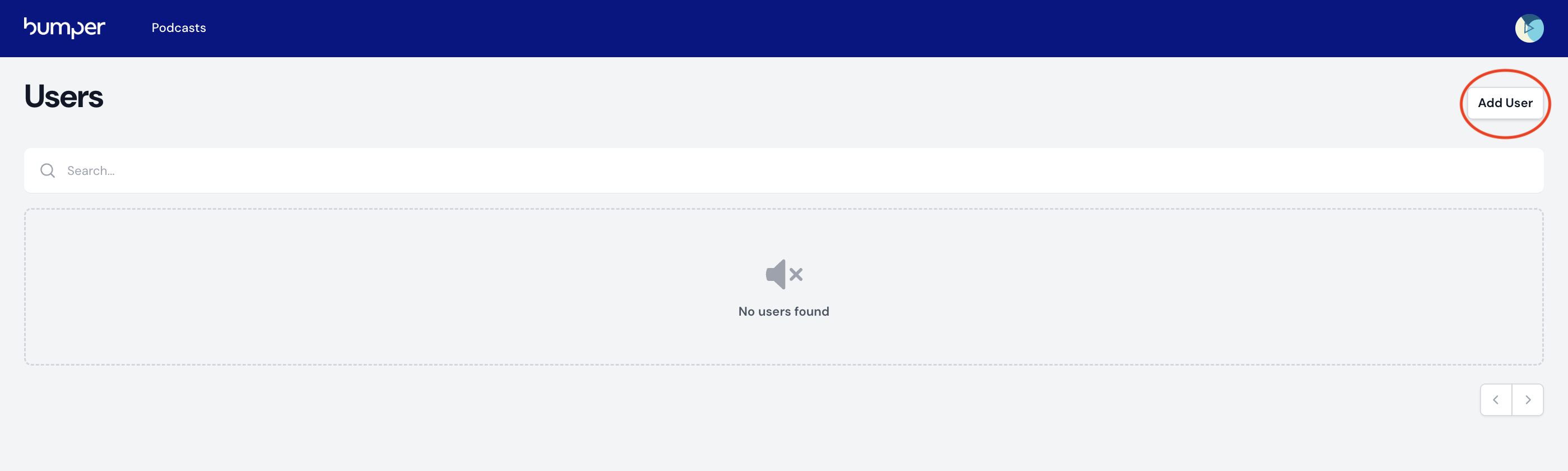
If you're an enterprise user, you must also assign that user to a team. You can then assign them one of two levels of permissions:
- Team Member gives them access to one or more podcasts within the team, including the ability to connect services to that podcast.
- Team Admin gives them access to all podcasts within the team as well as the ability to add and remove users and update their permissions.
If you do not have the ability to add users but believe you should, please contact support@wearebumper.com
How do I remove users from my podcast or network's Bumper Dashboard?
To remove a user, you must be the person who originally added your podcast to the Bumper Dashboard. For enterprise users, you must be a Team Admin.
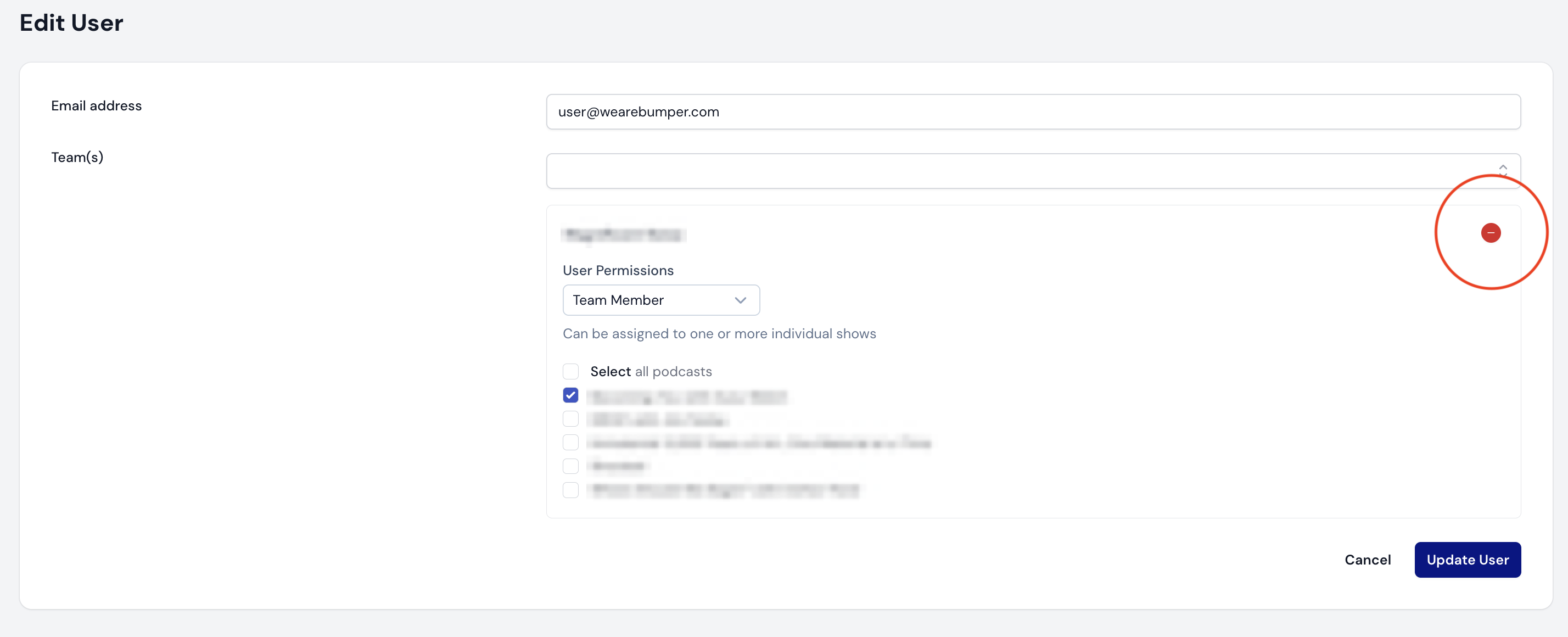
From the top right of the Dashboard, click on the circle and select "User Management." Click "Edit" next to the email address of the user you wish to remove. Uncheck the box next to the name of the podcast you wish to remove them from, then click "Update User."
If you're an enterprise user, you can remove a user from individual podcasts or click the red "-" sign to remove them from your team altogether.
Note that if you remove a user from all of your podcasts (or, for enterprise users, from your teams), you will no longer be able to see them listed on the user page. To add a user back, follow the User Management workflow.